
You no longer need to move a file to a laptop or desktop computer to print. You can print from phone using an iPhone or Android device in a few minutes. Most modern wireless printers connect via Wi-Fi, built-in phone printing, or a manufacturer’s app.
| What You Need | iPhone | Android |
|---|---|---|
| Main printing method | Apple AirPrint | Default Print Service or Mopria |
| Connection | Same Wi-Fi network | Same Wi-Fi network or supported Wi-Fi Direct |
| Extra app required | Usually no | Usually no |
| Alternative | Printer manufacturer’s app | Printer manufacturer’s app |
| Common printable files | Photos, PDFs, emails, webpages | Photos, PDFs, emails, webpages |
| Computer required | No | No |
Quick Answer
Connect your phone and printer to the same Wi-Fi network. Open the document, photo, email, or webpage you want printed. On iPhone, use Share and Print through AirPrint. On Android, open Print from the app menu or Share menu, choose your printer, adjust the settings, and send the job.
Key Takeaways
- iPhones can use AirPrint with compatible wireless printers.
- Android includes built-in printing through its Default Print Service.
- Mopria can provide broader Android printer support and extra settings.
- Printer-brand apps can help when automatic discovery fails.
- Wi-Fi Direct can work without a home router on supported devices.
- Printer discovery problems usually involve networking, printer status, or disabled print services.
What You Need Before Printing From a Phone
Your phone and printer usually need to be on the same local Wi-Fi network. The printer must also support wireless or network printing. Apple requires both devices to be on the same Wi-Fi network when using AirPrint.
Android users have several options because printing support varies by phone and printer model. Google’s Android instructions include built-in print services that can be managed from Settings. Mopria also states that many Android devices already include printing technology based on its standard.
Check the printer before changing settings on your phone. Confirm it has paper, enough ink or toner, and no error message. A printer showing an offline warning may not appear on your phone at all.
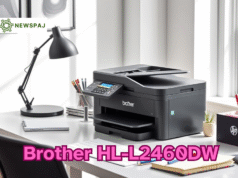
Newspaj’s Brother HL-L2460DW review shows how a wireless printer can support AirPrint and Mopria. That combination lets people in mixed iPhone and Android households use the same printer. You can also browse Newspaj’s Tech section for related device guides.
How to Print From Phone in 7 Steps
The exact buttons differ between iPhone, Samsung Galaxy, Google Pixel, and other devices. The basic process remains similar across most modern phones. Follow these steps before trying brand-specific troubleshooting.
1. Turn on the printer. Confirm the printer shows no paper, ink, toner, or connection errors.
2. Connect both devices. Put the phone and printer on the same Wi-Fi network when possible.
3. Open your file. Choose the photo, PDF, email, webpage, or document you need.
4. Open the print command. Look under Share, More, Menu, or the application’s settings.
5. Choose your printer. Select the correct device from the available printer list.
6. Check print settings. Review paper size, copies, orientation, color, and page range.
7. Send the job. Tap Print and check the printer for the finished pages.
Check the preview before sending a long document. A wrong paper size can crop text or create unwanted page breaks. US users should also confirm Letter paper when that is what the printer contains.
How to Print From an iPhone With AirPrint

AirPrint is Apple’s built-in wireless printing system for compatible printers. Apple says applications including Mail, Photos, and Safari can use it. You usually don’t need separate printer drivers on the iPhone.
First, connect your iPhone and AirPrint printer to the same Wi-Fi network. Open the content you want to print and find Share, More, Reply, or the Actions menu. Select Print, then choose the printer shown on the screen.
Next, review the options offered by the application and printer. These may include copies, page selection, paper size, or other controls. Tap Print when the preview and settings look correct.
You can monitor an active iPhone print job through Print Center. Open the App Switcher while a job is processing to find it. Print Center also lets you cancel a job before it finishes.
What If Your iPhone Cannot Find the Printer?
Start by confirming both devices use the same Wi-Fi network. Guest networks can isolate connected devices and prevent printer discovery. Restarting the printer and router can also restore local network discovery.
Make sure the printer supports AirPrint before spending time changing iPhone settings. Older printers may require the manufacturer’s application instead. Canon, Brother, Epson, and HP offer mobile applications for many supported models.
How to Print From an Android Phone
Android includes a printing framework for compatible applications and printers. Google places printing controls under Settings > Connected devices > Connection preferences > Printing on supported Android versions. Menu names can differ slightly by phone manufacturer.
Open the photo, PDF, email, or document you want printed. Tap the application menu, the More button, or the Share option, then choose Print. Select the printer and review the preview before sending the job.
Android’s Default Print Service can automatically discover many supported printers. Mopria says its technology is built into Android’s Default Print Service. It supports common controls including copies, color, orientation, page range, and paper size.
Samsung Galaxy menus may not exactly match a Google Pixel’s menus. Searching Settings for Printing is often faster than following a fixed menu path. Newspaj’s Pixel 3 XL coverage can also help readers understand Google’s Android device family.
When to Use Mopria on Android
Mopria helps when you need broader printer discovery or more printing controls. Its service supports certified printers from many major manufacturers. Some Android devices already include a Mopria-powered print service.
Mopria can also work through Wi-Fi Direct on supported devices. That can help when a normal wireless network isn’t available. Both the phone and printer need compatible Wi-Fi Direct support.
The full Mopria service can provide options beyond basic Android printing. Depending on the printer, those options may include media type, print quality, borderless printing, and secure printing. Available controls still depend on the printer’s hardware.
How to Print Photos, PDFs, Emails, and Webpages
Photos are usually easiest to print directly from Photos, Google Photos, or your phone’s gallery. Open the image and locate Print through Share or the application’s menu. Check the paper size carefully before printing on photo paper.
PDF files also work well because their layout is already fixed. Open the file in Files, Drive, Acrobat, or another PDF reader that supports printing. Choose the required pages instead of sending the entire document when you need only one section.
Emails usually include a Print command in their menu. Attachments may need to be opened in their own viewer before printing. Saving a difficult attachment as a PDF can also preserve its formatting.
Webpage printing depends on your browser. Chrome and Safari provide ways to print supported pages from mobile devices. Always inspect the preview because advertisements and navigation elements may affect the page layout.
Can You Print Without Wi-Fi?
You may still have options when a normal home Wi-Fi network is unavailable. Wi-Fi Direct lets some printers connect directly to a phone wirelessly. The printer manual or manufacturer’s app usually explains how to enable it.
Mopria confirms that compatible Android devices and printers can use Wi-Fi Direct without a shared wireless network. This connection differs from standard internet access. Your phone may temporarily connect directly to the printer while the job transfers.
Bluetooth is another option on certain portable or specialty printers. Support is more limited than Wi-Fi printing and often requires a dedicated application. Check your printer’s documentation before assuming Bluetooth can handle standard documents.
Why Your Phone Cannot Find the Printer
Printer discovery failures are common, but they usually have simple causes. Start with the network before reinstalling applications or changing advanced settings. Most failures come from connection differences, disabled services, or an offline printer.
Check these items:
- Phone and printer are connected to the same Wi-Fi network.
- The printer is powered on and reports no errors.
- Android’s print service is enabled.
- AirPrint or another supported mobile-printing feature is available.
- Guest Wi-Fi isolation is not blocking local devices.
- The printer has current firmware.
- The phone and printer applications are updated.
Restart the printer if it appears offline or unavailable. Restart the router if several wireless devices are having trouble communicating. Then reopen the print menu and search for the printer again.
If automatic discovery still fails, try the printer manufacturer’s application. Some apps offer guided setup and can find models the standard phone menu misses. Android users can also add a network printer manually.
Which Mobile Printing Method Should You Use?
| Situation | Recommended Method | Why |
|---|---|---|
| iPhone with compatible printer | AirPrint | Built into iOS and requires no driver |
| Android with supported network printer | Default Print Service | Already built into many Android devices |
| Android needing more controls | Mopria | Adds broader settings and printer support |
| Printer not discovered automatically | Manufacturer app | Can provide model-specific setup |
| No home Wi-Fi available | Wi-Fi Direct | Creates a direct device-to-printer connection |
| Portable specialty printer | Manufacturer app or Bluetooth | Often required for model-specific hardware |
Use the simplest method your printer supports. Installing several print applications can sometimes create duplicate printer listings on Android. One working print service is usually enough for ordinary documents and photos.
People replacing an older phone should also confirm that their new device supports their preferred printer applications. Newspaj’s guide to refurbished phones covers several popular iPhone, Galaxy, and Pixel options. Current operating-system support can affect application compatibility over time.
Tips for Better Prints From Your Phone
Match the digital print settings to the physical paper inside the printer. US home printers commonly use Letter paper for documents and smaller photo sizes for pictures. A mismatch can create clipped margins or unexpected scaling.
Use the print preview instead of immediately pressing Print. Check orientation, page count, color settings, and page range. This small check can prevent wasted paper and ink.
For important documents, save or export the file as a PDF first when possible. PDFs often retain page structure better between applications. This approach is especially useful for forms, tickets, resumes, and multi-page documents.
Frequently Asked Questions
Can I print from phone without a computer?
Yes, most current wireless printers can receive jobs directly from supported smartphones. An iPhone can use AirPrint, while Android can use built-in printing or Mopria. A computer is not required for normal mobile printing.
Do my phone and printer need to be on the same Wi-Fi?
They usually need to be on the same local Wi-Fi network for standard wireless printing. Apple specifically requires this setup for normal AirPrint discovery. Wi-Fi Direct can provide an alternative on compatible printers.
Does Android support AirPrint?
No, AirPrint is Apple’s printing technology for Apple devices. Android uses its own printing framework and services, such as the Default Print Service. Mopria technology also supports a large range of compatible Android printing devices.
Why does my printer appear offline on my phone?
The printer may have lost its network connection or entered an error state. Check its Wi-Fi indicator, paper supply, ink or toner, and display messages. Restarting the printer and router often restores discovery.
Can I print a PDF directly from my phone?
Yes, you can open a PDF in a compatible viewer and choose Print. Both iPhone and Android support printing from many common PDF applications. Review page ranges before printing a large document.
Can I print using mobile data?
Standard local wireless printing usually requires Wi-Fi or a direct connection to the printer. Cellular data alone usually can’t discover a local printer. Some printer manufacturers offer separate remote-printing features through their applications.
Start With the Built-In Printing Option
Your phone already includes most of what you need for everyday printing. Start with AirPrint on iPhone or Android’s built-in print service before installing extra software. Use the manufacturer’s application when your printer needs model-specific setup or controls.
Keep the phone, printer, and apps updated to reduce connection issues. Check the preview before every important print job and confirm the correct paper size. With those basics covered, you can move documents and photos from your screen to paper without a computer.