Tech

Home Tech
Simply technology includes tools and machines. On our site, you can search or explore tools and machines that may be used to solve real-world problems.

How to Go Straight to Voicemail? The Complete Guide to Skipping the Ring, Leaving Private Messages, and Communicating Without Real-Time Conversations

0
How to Go Straight to Voicemail?

Introduction

In today’s fast-paced, always-connected world, not every conversation needs to be held in real time. Sometimes, you just need to leave a quick update, deliver a private message, or avoid an awkward exchange without engaging in a live call. That’s where knowing how to go straight to voicemail becomes a useful skill.

How to Go Straight to Voicemail? Trying to reach clients discreetly or someone simply avoiding confrontation, learning how to skip the ring and get your message across can save time and reduce stress. Fortunately, there are several reliable techniques, both manual and tech-assisted, that can help you do just that, with options ranging from temporary device settings to smart voicemail apps.

For more reliable options, voicemail apps like Slydial, Google Voice, and YouMail allow you to bypass the ringtone and drop a message directly into voicemail. These tools are especially useful for professionals, offering privacy, efficiency, and even voicemail scheduling features.

SectionKey Points
How to Go Straight to Voicemail?Voicemail allows private, non-intrusive communication, useful for avoiding live calls or awkward exchanges.
What It MeansThe call bypasses ringing and goes directly to the voicemail inbox without alerting the recipient.
Reasons to Use ItDeliver private messages, avoid confrontation, consider time zones, document messages, and follow up non-intrusively.
Manual TechniquesCall when the phone is off or on airplane mode; hang up before the first ring; use “Do Not Disturb” (if you have access to the device).
Apps & ServicesSlydial (US only), Google Voice, YouMail, and HulloMail offer voicemail drops, transcription, scheduling, and business features.
Ethical ConsiderationsEnsure consent, avoid spam or harassment, and respect “Do Not Disturb” preferences, especially in sales or marketing.
Troubleshooting TipsCheck phone status, voicemail setup, app compatibility, and if call-screening tools are active.
Voicemail TipsKeep the message 20–30 seconds, include the name, reason for call, and a clear call to action like “text me back.”

How to Go Straight to Voicemail?

Knowing how to go straight to voicemail can be useful in situations where you want to leave a message without initiating a real-time conversation. There are several ways to do this, ranging from manual methods to using dedicated apps and services. How to Go Straight to Voicemail? One common approach is calling when the recipient’s phone is turned off or in airplane mode, which typically routes the call directly to voicemail.

Another method involves hanging up before the first ring, as some carriers may interpret this as a missed call and forward it to voicemail, though this technique is inconsistent and network dependent. For those who have access to the recipient’s phone, enabling the “Do Not Disturb” mode is another effective way to ensure calls are redirected to voicemail automatically.

Beyond manual tricks, services like Slydial in the U.S. allow you to dial a number specifically to leave a voicemail without ringing the phone. Similarly, apps such as Google Voice, YouMail, or HulloMail offer features that let you send voicemails directly, making them ideal for professionals who leave frequent messages. These tools often provide extra options like voicemail transcription and scheduling.
What Does “Go Straight to Voicemail” Mean?

When a call goes straight to voicemail, it means the recipient’s phone doesn’t ring or show an incoming call notification. Instead, your message is recorded as a voicemail without alerting the other party in real time. This method can be beneficial in both personal and professional settings.

Reasons Why You Might Want to Go Straight to Voicemail

  • Delivering a private or sensitive message
  • Avoiding confrontation or lengthy conversations
  • Reaching someone in a different time zone without disturbing them
  • Documenting your message (voicemails are often stored)
  • Following up with a lead or colleague professionally but non-intrusively

Manual Techniques to Trigger Voicemail

There are a few manual methods that can potentially direct your call straight to voicemail, though each comes with its own limitations. One option is to call when the recipient’s phone is turned off or set to airplane mode. In such cases, the call will typically bypass the ringtone and go straight to voicemail. However, this method is unreliable unless you know for certain that the phone is off, making it more of a passive approach dependent on conditions beyond your control.

Another method is to hang up before the first ring. Some carriers and voicemail systems may interpret a very brief call attempt as one that should go directly to voicemail. To try this, simply call the number and immediately end the call. While it can work in specific situations, it’s inconsistent and varies by mobile network, so results aren’t guaranteed.

A more deliberate approach involves using the “Do Not Disturb” setting on a device. If you have access to the recipient’s phone, such as a device belonging to a child or employee, you can enable this feature, which will route all incoming calls directly to voicemail. However, this method is only effective if you can modify the phone’s settings, so it’s not applicable in most everyday scenarios.
Apps and Services That Send You Straight to Voicemail

If you want a guaranteed and polished way to go straight to voicemail, third-party services and apps can help:

1. Slydial (U.S. only)

Slydial is a popular app/service that connects you directly to a recipient’s voicemail without ringing their phone.

  • Dial 267-SLYDIAL (267-759-3425) from your phone.
  • Enter the 10-digit mobile number of the person you want to reach.
  • You’ll be connected directly to their voicemail.
  • Availability: Works with most U.S. carriers.
  • Free/Paid: Free with ads; paid versions available for bulk users or ad-free experience.

2. Google Voice

Google Voice allows users to send voicemails via the app without placing a traditional call.

  • Open Google Voice.
  • Tap the contact.
  • Choose “Send voicemail” if available.
  • Bonus: You can listen to the message before sending and even transcribe it.

3. Visual Voicemail Apps

Apps like YouMail and HulloMail offer business-grade features, including direct voicemail drops, greetings customization, and message analytics.

  • Best For: Sales professionals, recruiters, or anyone who leaves frequent voicemails.

It’s important to use voicemail services responsibly:

  • Consent: In some jurisdictions, using tools to contact someone without ringing their phone can be considered intrusive.
  • Do Not Disturb List: Avoid contacting individuals who have opted out of marketing or sales calls.
  • Professional Boundaries: Don’t misuse voicemail drops for harassment or spamming.

Troubleshooting: Why Isn’t It Going to Voicemail?

If your call isn’t going directly to voicemail as intended, check the following:

  • Is the phone on and receiving a signal?
  • Does the recipient have voicemail set up?
  • Are you using a compatible app or carrier?
  • Is the recipient using call-screening tools (e.g., Google Call Screening or robocall filters)?

Pro Tips for Effective Voicemails

Once you’re connected directly to voicemail, how you leave your message plays a crucial role in ensuring it’s effective. Keep your message brief and clear, ideally between 20 and 30 seconds, to respect the recipient’s time. Start by stating your name and the reason for your call right away, so the listener immediately understands the context.

Be sure to end with a clear call to action, such as asking them to text or email you when convenient. For example, a well-structured voicemail might sound like this: “Hi Alex, this is Jordan. I just wanted to follow up on the report. We’ll need your input by Friday. No need to call back; a quick email would work. Thanks!”

Conclusion

How to Go Straight to Voicemail? Going straight to voicemail can be a thoughtful and efficient communication strategy when used appropriately. Whether you’re leveraging built-in phone settings, trying a quick manual workaround, or using dedicated voicemail services like Slydial or Google Voice, the key is to understand both the method and the intent behind it.

Always be mindful of ethical and legal boundaries, especially in professional or marketing contexts. Used responsibly, these techniques offer a practical way to respect someone’s time while ensuring your message gets delivered clearly, privately, and on your terms.

Want to know about ‘How To Perform Transformer Polarity Test? A Detailed Guide About Transformer Polarity Test?‘? Check out our ‘Tech‘ category.

FAQs

Can I make my call go straight to someone’s voicemail without ringing their phone?

Yes, using apps like Slydial (U.S. only) or Google Voice, you can leave a voicemail without triggering a ring.

What’s a simple manual way to reach voicemail directly?

Call when the recipient’s phone is off or in airplane mode; your call will usually go to voicemail.

Is it legal to use voicemail drop services?

Generally, yes, but check your country’s laws and avoid using them for spam or unsolicited marketing.

Why does my call not go straight to voicemail even with an app?

It could be due to call-screening features, the phone being on, or the voicemail not being set up properly.

How long should my voicemail be?

Keep it brief, ideally 20 to 30 seconds, with your name, purpose, and a clear call to action.
Brother HL-L2460DW In-Depth Review: Complete Breakdown of Features, Technical Specs, Wireless Setup, and Seamless Printing Performance

0
Brother HL-L2460DW

Introduction

Suppose you’re in the market for a reliable, high-performance monochrome laser printer that offers wireless functionality, fast print speeds, and minimal maintenance. In that case, the Brother HL-L2460DW may be just what you need. Built for home offices, students, and small businesses, this compact yet powerful printer has quickly gained popularity for its sharp print quality and impressive efficiency.

Whether you’re printing contracts, class notes, or professional reports, the HL-L2460DW delivers consistent results without breaking the bank. In this detailed review, we’ll explore its key features, technical specifications, wireless setup process, and real-world printing performance to help you decide if it’s the right choice for your printing needs.

Technical Specifications

SpecificationDetails
Print TechnologyMonochrome Laser
Maximum Print SpeedUp to 36 ppm
Print ResolutionUp to 2400 x 600 dpi
Duplex PrintingAutomatic (Standard)
Monthly Duty CycleUp to 15,000 pages
Recommended Monthly Volume2,000 pages
Processor600 MHz
Memory128 MB
Connectivity OptionsWi-Fi, USB 2.0, Ethernet
Mobile Printing SupportAirPrint, Google Cloud Print, Mopria, Brother iPrint&Scan
Paper Input Capacity250 sheets
Output Capacity120 sheets (face down)
Display1-line LCD
Compatible TonerBrother TN-730 (Standard), TN-760 (High Yield)
Operating System SupportWindows, macOS, Linux
Dimensions14.2″ x 14″ x 7.2″
WeightApprox. 15.9 lbs

Design and Build Quality

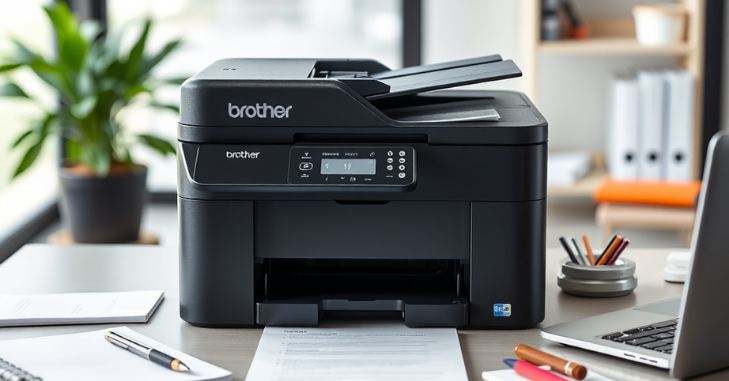
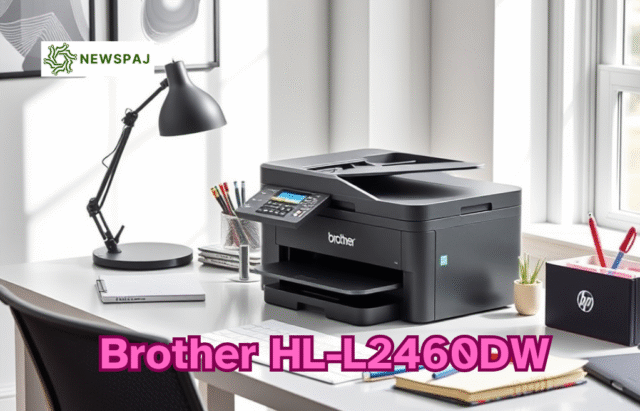
The Brother HL-L2460DW features a sleek, minimalist design with a compact footprint, making it an ideal choice for both home and small office environments. Measuring just 14.2 x 14 x 7.2 inches and weighing under 16 pounds, this monochrome laser printer easily fits on a desk or shelf without taking up excessive space.

Its matte-black finish resists fingerprints, while the sturdy plastic build provides durability for regular use. The intuitive control panel, featuring a single-line LCD and essential buttons, ensures ease of operation, even for non-technical users.

Key Features of the Brother HL-L2460DW

1. Monochrome Laser Technology

At its core, the HL-L2460DW is built around monochrome laser printing, which ensures sharp black-and-white text documents. This makes it an excellent choice for students, professionals, or anyone needing fast, high-quality document printing.

2. Automatic Duplex Printing

One of its standout features is automatic duplex printing (double-sided), which helps save paper and is a must-have for businesses looking to reduce operational costs. This functionality runs smoothly and reliably without jamming, even during bulk jobs.

3. Fast Print Speeds

The printer boasts a print speed of up to 36 pages per minute (ppm), outperforming many of its competitors in the class. Whether you’re printing extensive reports or quick notes, the HL-L2460DW delivers with minimal wait times.

4. 250-Sheet Paper Tray

A generous input capacity is another practical feature. The 250-sheet tray accommodates both letter and legal-sized paper, reducing the need for frequent refills. This printer features a dedicated manual input tray designed for handling envelopes and other unique media types.

5. Mobile Printing Options

Thanks to support for Apple AirPrint, Google Cloud Print, Brother iPrint&Scan, and Mopria, you can print wirelessly from smartphones, tablets, laptops, or desktops without needing a direct USB connection.

Wireless Setup Guide

Getting the Brother HL-L2460DW connected to your wireless network is straightforward and takes only a few minutes.

Step 1: Power On and Access Control Panel

After unboxing and plugging in the device, please turn it on and access the control panel. Navigate to the “Network” settings using the buttons on the LCD.

Step 2: Select Wireless Setup Wizard

The printer will search for available Wi-Fi networks.

Step 3: Connect to Your Wi-Fi

Choose your Wi-Fi SSID (network name), and enter your password when prompted. Once connected, the printer will confirm a successful connection with a printout of the network settings.

Step 4: Install Drivers

On your PC or Mac, visit Brother’s official support website and download the latest drivers. You can also use the included CD if available. Proceed through the setup wizard’s guided steps to finalize the device configuration.

Step 5: Print from Mobile Devices

To print from smartphones or tablets:

  • iOS: Use AirPrint.
  • Android: Use Mopria or download the Brother iPrint & Scan app.
  • Windows/macOS: Add the printer via system settings once it’s detected on the network.

Printing Performance and Output Quality

Despite being a budget-friendly printer, the HL-L2460DW excels in printing quality. Text documents are exceptionally sharp and well-defined, even at smaller font sizes. Graphics and grayscale images, while not their primary use, are rendered with decent clarity for business documents or presentations.

The high resolution of up to 2400 x 600 dpi ensures that output looks professional and polished, suitable for everything from internal reports to client-facing documents.

It maintains consistent output speed even with duplex printing or during extended print jobs. Whether printing 1 or 100 pages, the machine delivers without overheating or jamming.

Toner Performance and Cost Efficiency

The HL-L2460DW uses the TN-730 standard and TN-760 high-yield toner cartridges. The TN-760 can print up to 3,000 pages, making it a cost-effective choice for heavy users.

Additionally, Brother’s toner save mode helps stretch cartridge life without significantly sacrificing print quality, especially for draft documents. This model also supports third-party compatible cartridges; however, Brother recommends using genuine supplies to maintain printer health and print quality.

Pros and Cons of the Brother HL-L2460DW

Pros

  • Excellent print speed (36 ppm)
  • High-resolution output
  • Compact and lightweight
  • Reliable wireless connectivity
  • Automatic duplex printing
  • Great toner efficiency

Cons

  • No color printing capability
  • Limited LCD functionality
  • No scanning or copying (single-function printer)

Ideal Use Cases

The Brother HL-L2460DW is tailored for:

  • Home offices need efficient and affordable printing.
  • Students who require reliable print output for assignments.
  • Small businesses managing black-and-white document production.
  • Remote workers need wireless convenience and minimal maintenance.

It’s not intended for photo or color printing. Still, it is unmatched in its category for black-and-white performance and long-term reliability.

Comparison Table: Brother HL-L2460DW vs Similar Models

FeatureBrother HL-L2460DWBrother HL-L2350DWHP LaserJet M209dw
Print Speed36 ppm32 ppm30 ppm
Duplex PrintingYes (Automatic)YesYes
ConnectivityWi-Fi, USB, EthernetWi-Fi, USBWi-Fi, USB, Ethernet
Mobile PrintingAirPrint, Mopria, iPrintAirPrint, Mopria, iPrintAirPrint, HP Smart App
Paper Tray Capacity250 sheets250 sheets150 sheets
Toner CompatibilityTN-730, TN-760TN-730, TN-760HP 134A/X Toner
Monthly Duty CycleUp to 15,000 pagesUp to 15,000 pagesUp to 20,000 pages
SizeCompactCompactSlightly larger
Ideal ForHome & Small OfficePersonal Use & StudentsSmall Businesses
Price Range (USD)$130–$160$120–$140$150–$180

Conclusion

The Brother HL-L2460DW is a standout performer in the budget-friendly laser printer market, offering a perfect blend of speed, print quality, wireless connectivity, and cost-effectiveness. Its seamless wireless setup, support for mobile printing, and high-yield toner options make it a practical solution for today’s fast-paced work-from-home and small office environments. While it lacks color and multifunction features, its strengths in sharp monochrome output and low operational costs more than compensate. Whether you’re a student relying on consistent printing or a professional handling routine documents, the HL-L2460DW offers reliable performance with crisp, professional-quality output and minimal effort.

Want to know about “The Best Paper Shredder: Key Features and Expert Tips for Choosing the Best Paper Shredder for Home” Check out our “Tech” category.

Frequently Asked Questions (FAQs)

Is the Brother HL-L2460DW suitable for home use?

Yes. Its compact size, fast print speed, and wireless functionality make it an excellent choice for home offices, students, and remote workers.

Does the Brother HL-L2460DW support color printing?

No. This is a monochrome laser printer, meaning it prints only in black and white. It’s ideal for text documents and grayscale graphics.

What toner does the Brother HL-L2460DW use?

This printer is compatible with Brother TN-730 toner for standard output and TN-760 cartridges for extended printing capacity. TN-760 is more cost-efficient for high-volume printing.

Print From Phone: Easy iPhone and Android Methods for Documents, Photos, and PDFs

0
Print From Phone

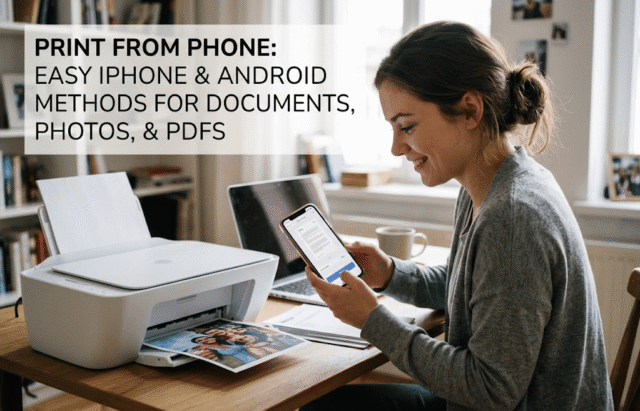
You no longer need to move a file to a laptop or desktop computer to print. You can print from phone using an iPhone or Android device in a few minutes. Most modern wireless printers connect via Wi-Fi, built-in phone printing, or a manufacturer’s app.

What You NeediPhoneAndroid
Main printing methodApple AirPrintDefault Print Service or Mopria
ConnectionSame Wi-Fi networkSame Wi-Fi network or supported Wi-Fi Direct
Extra app requiredUsually noUsually no
AlternativePrinter manufacturer’s appPrinter manufacturer’s app
Common printable filesPhotos, PDFs, emails, webpagesPhotos, PDFs, emails, webpages
Computer requiredNoNo

Quick Answer

Connect your phone and printer to the same Wi-Fi network. Open the document, photo, email, or webpage you want printed. On iPhone, use Share and Print through AirPrint. On Android, open Print from the app menu or Share menu, choose your printer, adjust the settings, and send the job.

Key Takeaways

  • iPhones can use AirPrint with compatible wireless printers.
  • Android includes built-in printing through its Default Print Service.
  • Mopria can provide broader Android printer support and extra settings.
  • Printer-brand apps can help when automatic discovery fails.
  • Wi-Fi Direct can work without a home router on supported devices.
  • Printer discovery problems usually involve networking, printer status, or disabled print services.

What You Need Before Printing From a Phone

Your phone and printer usually need to be on the same local Wi-Fi network. The printer must also support wireless or network printing. Apple requires both devices to be on the same Wi-Fi network when using AirPrint.

Android users have several options because printing support varies by phone and printer model. Google’s Android instructions include built-in print services that can be managed from Settings. Mopria also states that many Android devices already include printing technology based on its standard.

Check the printer before changing settings on your phone. Confirm it has paper, enough ink or toner, and no error message. A printer showing an offline warning may not appear on your phone at all.

Newspaj’s Brother HL-L2460DW review shows how a wireless printer can support AirPrint and Mopria. That combination lets people in mixed iPhone and Android households use the same printer. You can also browse Newspaj’s Tech section for related device guides.

How to Print From Phone in 7 Steps

The exact buttons differ between iPhone, Samsung Galaxy, Google Pixel, and other devices. The basic process remains similar across most modern phones. Follow these steps before trying brand-specific troubleshooting.

1. Turn on the printer. Confirm the printer shows no paper, ink, toner, or connection errors.

2. Connect both devices. Put the phone and printer on the same Wi-Fi network when possible.

3. Open your file. Choose the photo, PDF, email, webpage, or document you need.

4. Open the print command. Look under Share, More, Menu, or the application’s settings.

5. Choose your printer. Select the correct device from the available printer list.

6. Check print settings. Review paper size, copies, orientation, color, and page range.

7. Send the job. Tap Print and check the printer for the finished pages.

Check the preview before sending a long document. A wrong paper size can crop text or create unwanted page breaks. US users should also confirm Letter paper when that is what the printer contains.

How to Print From an iPhone With AirPrint

How to Print From an iPhone With AirPrint

AirPrint is Apple’s built-in wireless printing system for compatible printers. Apple says applications including Mail, Photos, and Safari can use it. You usually don’t need separate printer drivers on the iPhone.

First, connect your iPhone and AirPrint printer to the same Wi-Fi network. Open the content you want to print and find Share, More, Reply, or the Actions menu. Select Print, then choose the printer shown on the screen.

Next, review the options offered by the application and printer. These may include copies, page selection, paper size, or other controls. Tap Print when the preview and settings look correct.

You can monitor an active iPhone print job through Print Center. Open the App Switcher while a job is processing to find it. Print Center also lets you cancel a job before it finishes.

What If Your iPhone Cannot Find the Printer?

Start by confirming both devices use the same Wi-Fi network. Guest networks can isolate connected devices and prevent printer discovery. Restarting the printer and router can also restore local network discovery.

Make sure the printer supports AirPrint before spending time changing iPhone settings. Older printers may require the manufacturer’s application instead. Canon, Brother, Epson, and HP offer mobile applications for many supported models.

How to Print From an Android Phone

Android includes a printing framework for compatible applications and printers. Google places printing controls under Settings > Connected devices > Connection preferences > Printing on supported Android versions. Menu names can differ slightly by phone manufacturer.

Open the photo, PDF, email, or document you want printed. Tap the application menu, the More button, or the Share option, then choose Print. Select the printer and review the preview before sending the job.

Android’s Default Print Service can automatically discover many supported printers. Mopria says its technology is built into Android’s Default Print Service. It supports common controls including copies, color, orientation, page range, and paper size.

Samsung Galaxy menus may not exactly match a Google Pixel’s menus. Searching Settings for Printing is often faster than following a fixed menu path. Newspaj’s Pixel 3 XL coverage can also help readers understand Google’s Android device family.

When to Use Mopria on Android

Mopria helps when you need broader printer discovery or more printing controls. Its service supports certified printers from many major manufacturers. Some Android devices already include a Mopria-powered print service.

Mopria can also work through Wi-Fi Direct on supported devices. That can help when a normal wireless network isn’t available. Both the phone and printer need compatible Wi-Fi Direct support.

The full Mopria service can provide options beyond basic Android printing. Depending on the printer, those options may include media type, print quality, borderless printing, and secure printing. Available controls still depend on the printer’s hardware.

How to Print Photos, PDFs, Emails, and Webpages

Photos are usually easiest to print directly from Photos, Google Photos, or your phone’s gallery. Open the image and locate Print through Share or the application’s menu. Check the paper size carefully before printing on photo paper.

PDF files also work well because their layout is already fixed. Open the file in Files, Drive, Acrobat, or another PDF reader that supports printing. Choose the required pages instead of sending the entire document when you need only one section.

Emails usually include a Print command in their menu. Attachments may need to be opened in their own viewer before printing. Saving a difficult attachment as a PDF can also preserve its formatting.

Webpage printing depends on your browser. Chrome and Safari provide ways to print supported pages from mobile devices. Always inspect the preview because advertisements and navigation elements may affect the page layout.

Can You Print Without Wi-Fi?

You may still have options when a normal home Wi-Fi network is unavailable. Wi-Fi Direct lets some printers connect directly to a phone wirelessly. The printer manual or manufacturer’s app usually explains how to enable it.

Mopria confirms that compatible Android devices and printers can use Wi-Fi Direct without a shared wireless network. This connection differs from standard internet access. Your phone may temporarily connect directly to the printer while the job transfers.

Bluetooth is another option on certain portable or specialty printers. Support is more limited than Wi-Fi printing and often requires a dedicated application. Check your printer’s documentation before assuming Bluetooth can handle standard documents.

Why Your Phone Cannot Find the Printer

Printer discovery failures are common, but they usually have simple causes. Start with the network before reinstalling applications or changing advanced settings. Most failures come from connection differences, disabled services, or an offline printer.

Check these items:

  • Phone and printer are connected to the same Wi-Fi network.
  • The printer is powered on and reports no errors.
  • Android’s print service is enabled.
  • AirPrint or another supported mobile-printing feature is available.
  • Guest Wi-Fi isolation is not blocking local devices.
  • The printer has current firmware.
  • The phone and printer applications are updated.

Restart the printer if it appears offline or unavailable. Restart the router if several wireless devices are having trouble communicating. Then reopen the print menu and search for the printer again.

If automatic discovery still fails, try the printer manufacturer’s application. Some apps offer guided setup and can find models the standard phone menu misses. Android users can also add a network printer manually.

Which Mobile Printing Method Should You Use?

SituationRecommended MethodWhy
iPhone with compatible printerAirPrintBuilt into iOS and requires no driver
Android with supported network printerDefault Print ServiceAlready built into many Android devices
Android needing more controlsMopriaAdds broader settings and printer support
Printer not discovered automaticallyManufacturer appCan provide model-specific setup
No home Wi-Fi availableWi-Fi DirectCreates a direct device-to-printer connection
Portable specialty printerManufacturer app or BluetoothOften required for model-specific hardware

Use the simplest method your printer supports. Installing several print applications can sometimes create duplicate printer listings on Android. One working print service is usually enough for ordinary documents and photos.

People replacing an older phone should also confirm that their new device supports their preferred printer applications. Newspaj’s guide to refurbished phones covers several popular iPhone, Galaxy, and Pixel options. Current operating-system support can affect application compatibility over time.

Tips for Better Prints From Your Phone

Match the digital print settings to the physical paper inside the printer. US home printers commonly use Letter paper for documents and smaller photo sizes for pictures. A mismatch can create clipped margins or unexpected scaling.

Use the print preview instead of immediately pressing Print. Check orientation, page count, color settings, and page range. This small check can prevent wasted paper and ink.

For important documents, save or export the file as a PDF first when possible. PDFs often retain page structure better between applications. This approach is especially useful for forms, tickets, resumes, and multi-page documents.

Frequently Asked Questions

Can I print from phone without a computer?

Yes, most current wireless printers can receive jobs directly from supported smartphones. An iPhone can use AirPrint, while Android can use built-in printing or Mopria. A computer is not required for normal mobile printing.

Do my phone and printer need to be on the same Wi-Fi?

They usually need to be on the same local Wi-Fi network for standard wireless printing. Apple specifically requires this setup for normal AirPrint discovery. Wi-Fi Direct can provide an alternative on compatible printers.

Does Android support AirPrint?

No, AirPrint is Apple’s printing technology for Apple devices. Android uses its own printing framework and services, such as the Default Print Service. Mopria technology also supports a large range of compatible Android printing devices.

Why does my printer appear offline on my phone?

The printer may have lost its network connection or entered an error state. Check its Wi-Fi indicator, paper supply, ink or toner, and display messages. Restarting the printer and router often restores discovery.

Can I print a PDF directly from my phone?

Yes, you can open a PDF in a compatible viewer and choose Print. Both iPhone and Android support printing from many common PDF applications. Review page ranges before printing a large document.

Can I print using mobile data?

Standard local wireless printing usually requires Wi-Fi or a direct connection to the printer. Cellular data alone usually can’t discover a local printer. Some printer manufacturers offer separate remote-printing features through their applications.

Start With the Built-In Printing Option

Your phone already includes most of what you need for everyday printing. Start with AirPrint on iPhone or Android’s built-in print service before installing extra software. Use the manufacturer’s application when your printer needs model-specific setup or controls.

Keep the phone, printer, and apps updated to reduce connection issues. Check the preview before every important print job and confirm the correct paper size. With those basics covered, you can move documents and photos from your screen to paper without a computer.

Back-Market Phones: Premium Refurbished Smartphones Offering Quality, Performance, and Exceptional Value

0
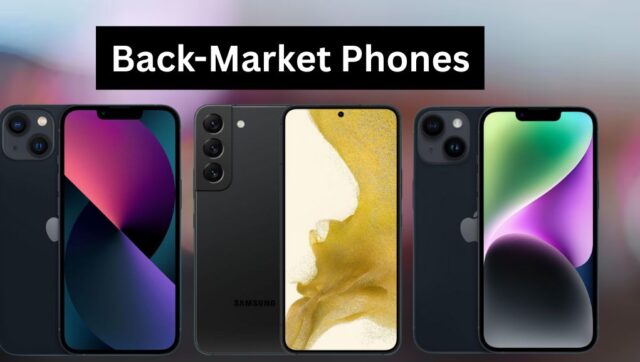
Back-Market Phones

Knowing About the Back-Market Phones     

Back-market phones offer budget-friendly access to premium smartphones, including iPhone 13, Samsung Galaxy S22, and Pixel 7, at 30–60% lower prices. These devices feature powerful A15 Bionic or Snapdragon 8 Gen 1 processors, 6–12 GB RAM, 128–512 GB storage, and vibrant OLED or AMOLED displays.

Certified and graded A–C, Back-market phones include 6–12-month warranties and retain features such as multi-lens cameras, Face ID, dual-SIM, and 5G connectivity. Supporting iOS 16 or Android 13, they ensure smooth multitasking, fast charging, and long-term reliability.

BasicsDetails
Affordability30–60% cheaper; iPhone 13, Galaxy S22, Pixel 7.
ProcessorA15 Bionic, Snapdragon 8 Gen 1 for fast performance.
RAM6–12 GB for smooth multitasking.
Storage128–512 GB for apps and media.
DisplayOLED/AMOLED, vibrant colors, high resolution.
CertificationTested, graded A–C for reliability.
Warranty6–12 months cover defects.
BatteryChecked/replaced if <85%, supports fast charging.
OSiOS 16 or Android 13 supported.
CameraMulti-lens, AI features retained.
Connectivity5G, Wi-Fi 6, Bluetooth, dual-SIM.
SustainabilityReduces e-waste, energy use, and raw material consumption.
PurchaseOnline, graded, filters, easy returns.
EcosystemWorks with iPhone, Galaxy, and Pixel devices.
ResaleHigh resale value, long-term reliability.
SoftwareApps run smoothly; features retained.

Affordability and Savings

Refurbished smartphones offer significant savings compared to new devices. Popular models like the iPhone 13, Samsung Galaxy S22, and Google Pixel 7 are available at 30–60% off. These phones come with fully functional processors, 6–12 GB RAM, storage from 128 GB to 512 GB, and high-resolution OLED or AMOLED screens, providing flagship performance at a fraction of retail costs.

Back-Market Phones Quality and Certification

Back-market phones are tested and certified before sale. iPhones, Galaxy, and Pixel devices undergo battery health checks, screen inspections, and component verification. Graded from A to C, these phones include 6–12 month warranties, ensuring reliability. The phones feature Face ID, fingerprint sensors, dual cameras, and fast-charging USB-C or Lightning ports, providing near-new performance for buyers.

Environmental Benefits

Choosing refurbished smartphones reduces e-waste and supports sustainability. Devices like the iPhone SE 2022, Galaxy A53, and Pixel 6 are restored rather than discarded. Repairing and reusing devices minimizes the extraction of raw materials, energy consumption, and the carbon footprint. Refurbished phones offer users eco-friendly tech while providing access to high-end features like 5G connectivity, AMOLED displays, and advanced camera systems.

Variety and OS

Back-market phones offer multiple OS options, including iOS 16 and Android 13. Users can purchase devices like the iPhone 14 Pro, Samsung Galaxy S21, or Pixel 7 Pro with original specs: Snapdragon 8 Gen 1, A15 Bionic chip, 120 Hz displays, and multi-lens cameras. Phones give buyers choices for gaming, photography, or productivity without paying full retail prices.

Battery and Performance

Refurbished phones are tested for battery efficiency and overall performance. Devices like the iPhone 13 Pro Max, Galaxy S22 Ultra, and Pixel 6 Pro undergo battery replacement if their capacity is below 85%. They feature high-speed processors, 6–12 GB RAM, and storage ranging from 128–512 GB. Optimized performance ensures smooth gaming, streaming, and multitasking, comparable to that of brand-new models.

Warranty and Support

Back-market phones come with 6–12 month warranties covering defects and functionality. Devices like iPhone 12, Galaxy Note 20, and Pixel 5 include technical support for OS updates, app compatibility, and connectivity issues. Phones provide reliable post-purchase assistance, ensuring devices with OLED displays, Face ID, or wireless charging remain fully operational for extended periods.

Phones are an excellent choice for users seeking affordable, reliable, and eco-friendly smartphones. These refurbished devices offer tested performance, long battery life, and essential features such as fast processors, high-quality displays, ample storage, and modern connectivity, providing a practical and sustainable alternative to new phones while saving money and supporting environmental responsibility.

Software Updates

  • Refurbished devices continue to receive official software updates.
  •  iPhones and Pixels remain compatible with iOS 16 or Android 13 updates.
  •  Apps, games, and productivity tools run efficiently, and security patches are applied.
  • The phones retain features like dual-SIM support, 5G connectivity, and advanced camera processing, maintaining modern functionality while extending device lifespan.

Accessibility and Purchase

Phones are sold online with detailed listings. Models like the iPhone 13 Mini, Galaxy S20 FE, and Pixel 6 are graded based on cosmetic condition, specs, storage, and battery health. Buyers can filter by OS, RAM, and display type. Payment options, quick shipping, and easy returns make Back-market phones convenient for budget-conscious consumers seeking flagship performance at an affordable price.

Long-Term Value

  • Refurbished smartphones provide excellent investment potential.
  • Devices like iPhone 12 Pro, Galaxy Z Flip 3, and Pixel 5 retain high resale value.
  • Low initial cost, warranty coverage, and reliable performance ensure savings over multiple upgrades.
  •  Regular OS updates, smooth multitasking, and high-quality displays make refurbished devices a practical choice for users seeking efficiency and long-lasting technology.

Conclusion

Back-market phones provide a perfect balance of affordability, performance, and sustainability. With flagship features like A15 Bionic and Snapdragon 8 Gen 1 processors, OLED/AMOLED displays, 6–12 GB RAM, and long-lasting batteries, these refurbished devices offer reliable, high-quality performance. Certified, graded, and backed by warranties, these phones ensure smooth software updates and multitasking, making them a practical, eco-friendly choice for users seeking modern technology without paying full retail prices.

Want to know about The 2016 MacBook Pro: A Game-Changer or a Controversial Upgrade? Unveiling Its Legacy and Relevance Check out our Tech category.

FAQs

What are refurbished phones?

These devices are restored to full functionality, including battery checks, screen inspections, and hardware tests. Popular models like iPhone, Galaxy, and Pixel are available at lower prices.

Are refurbished phones reliable?

Certified devices are graded A–C, include 6–12 month warranties, and retain core features like cameras, fast charging, and fingerprint or Face ID for consistent performance.

Which brands can I find?

Popular options include Apple iPhone, Samsung Galaxy, and Google Pixel, offering high-resolution OLED or AMOLED screens, multi-lens cameras, and advanced processors for smooth multitasking and gaming.

How long do batteries last?

Batteries are tested for capacity, and replacements are provided if capacity is below 85%. Devices support fast charging, ensuring reliable usage for gaming, streaming, and heavy daily tasks.

Will software updates work?

Devices remain compatible with iOS 16 and Android 13. Apps run efficiently, security patches are applied, and features like 5G or dual-SIM functionality continue to function correctly.